
Clients, invoices, and email in one admin panel
NXS CRM is a self-hosted admin panel for the day-to-day work of a small business: who you work with, what you billed, what came in, what went out, and the emails you send to a list. You install it on your own server. Your staff sign in at /admin.
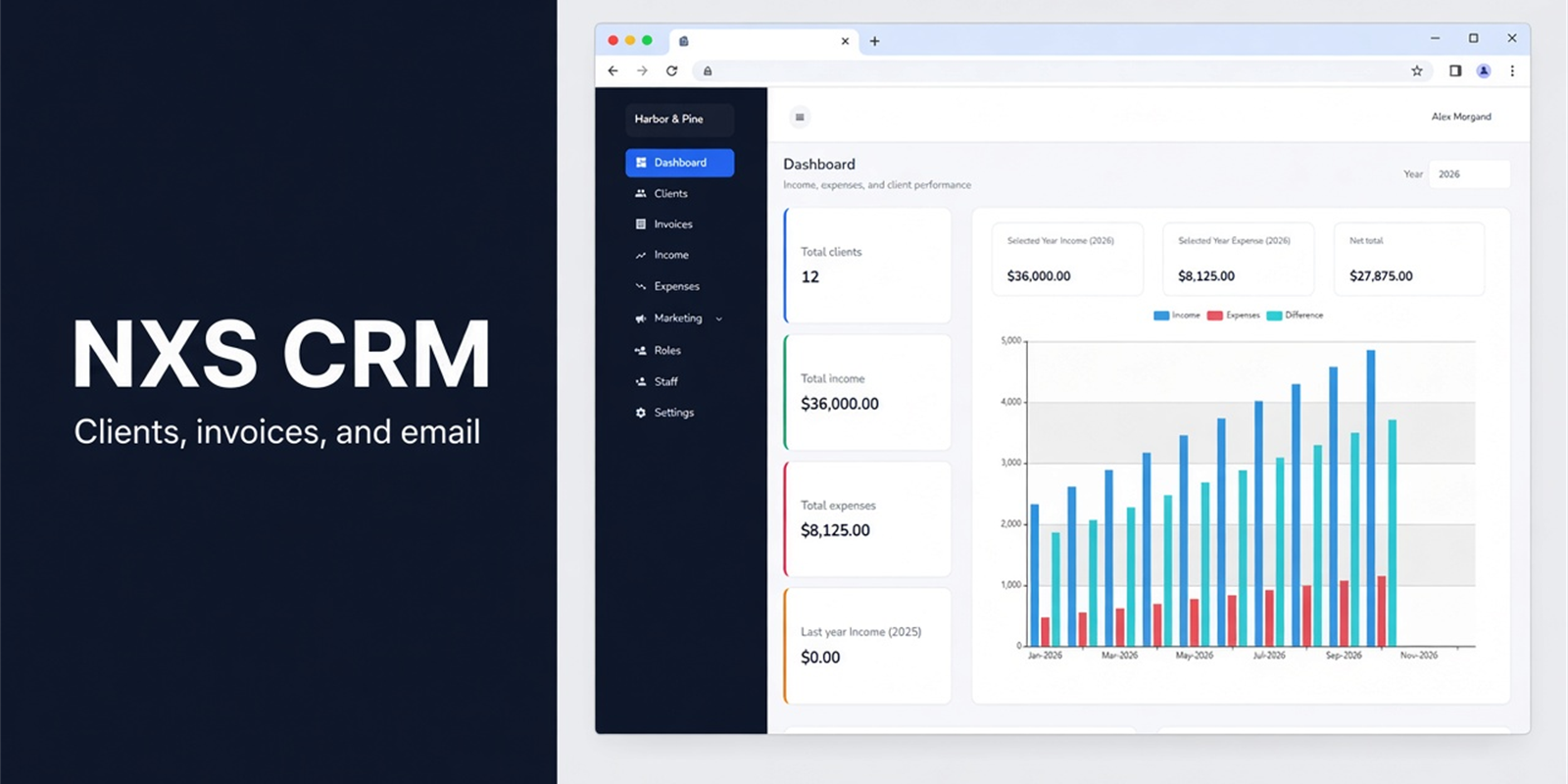
The work that usually sits in spreadsheets and inboxes
Client details live in one list. Invoices download as a PDF you can send. Income and expenses show up together for the year. You can email a list from the same panel, without opening a second tool.
How it helps
Four jobs, one sign-in. Each one writes into the same records, so the dashboard is not something you update by hand.
See the year
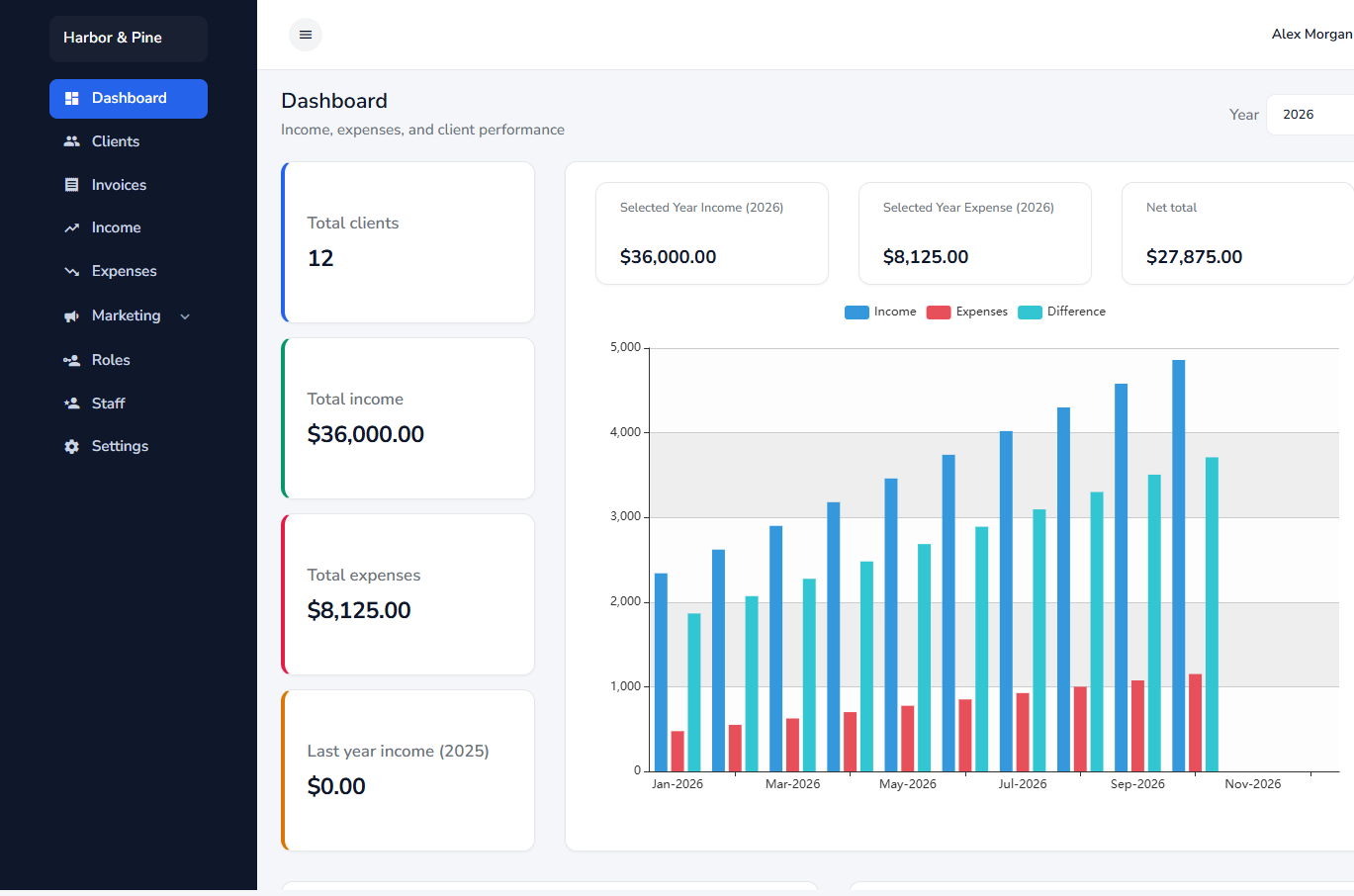
The dashboard totals clients, income, expenses, and the net for the year you pick. A monthly chart and your leading clients show whether the year is ahead or behind. Switch the year when you want last year’s picture before you plan the next one.
Know who you work with
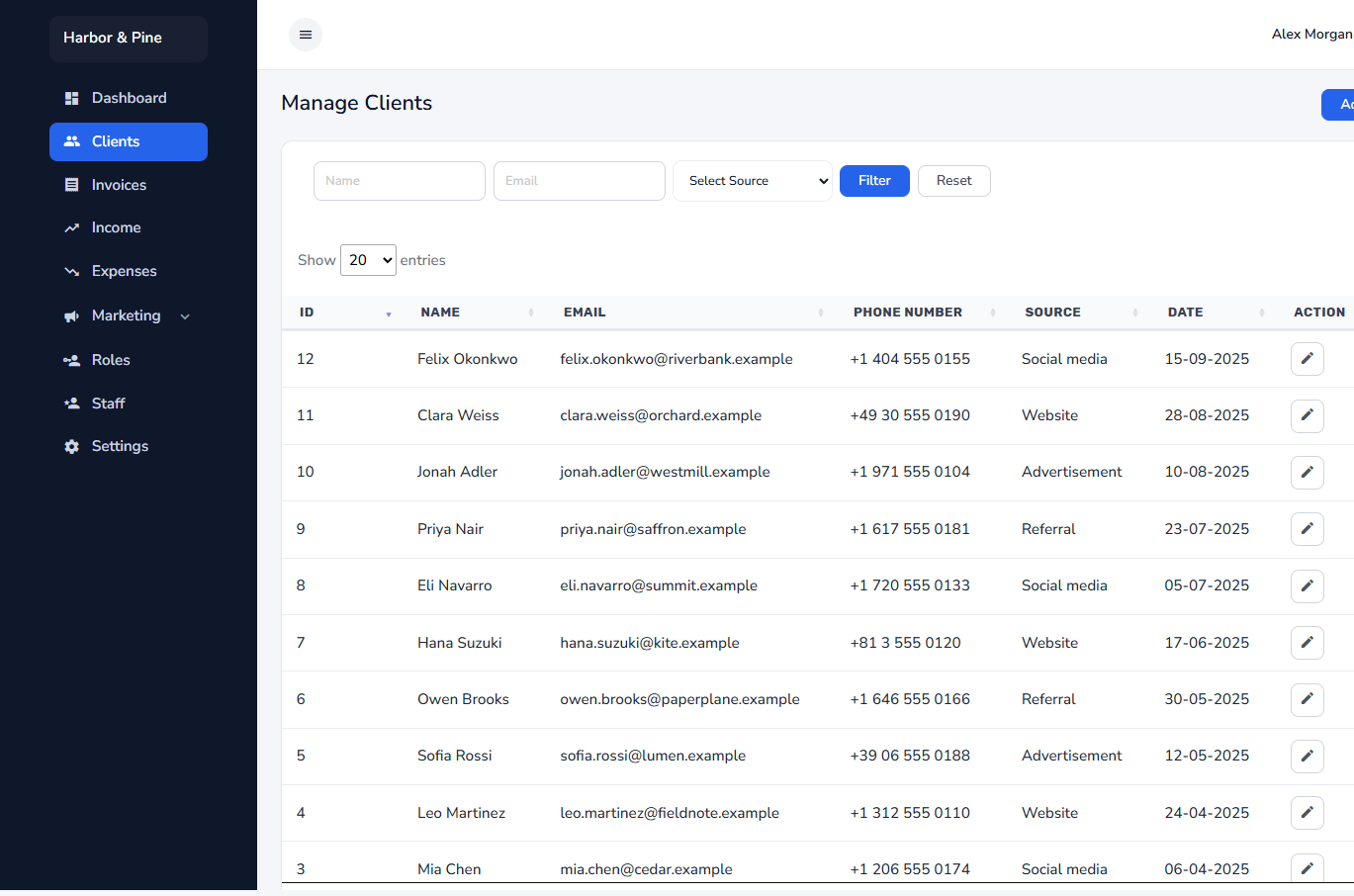
Each client keeps a name, email, phone, and where they came from. Search and filter the list when you need someone again, instead of hunting through old email threads. Contact fields are stored encrypted.
Bill and track the money
An invoice uses your bank account, GST, and from-address, then downloads as a PDF. Income and expenses feed the same yearly chart, so the dashboard is the record of the year, not a second spreadsheet.
Write to customers yourself
Build a list, import contacts from a CSV, and send an HTML template through your own mail server. The report shows how many messages were delivered, opened, and clicked.
A look through the panel
The screens below are the parts your team uses after install. The sample company is fictional.
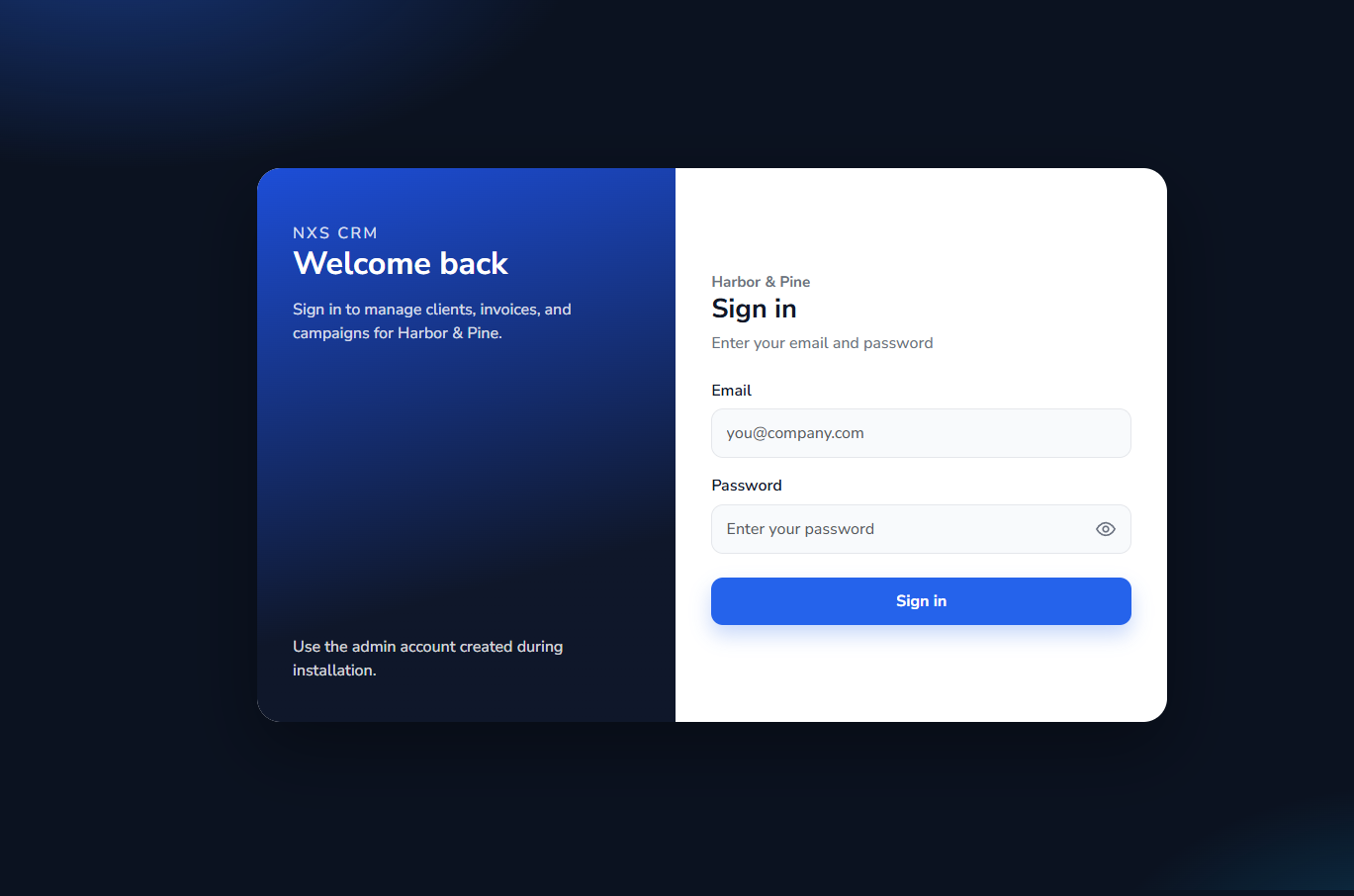
Sign in as your company
Staff sign in with the account you created. The logo and company name come from Settings, so the screen looks like your business.
See whether the year is ahead
Yearly income, expenses, and the net sit next to your leading clients. Change the year when you want to compare this year with the last one.
Keep every client in one list
Add a client once, then find them later by name, email, or source. The details you need for an invoice or an email are already there.
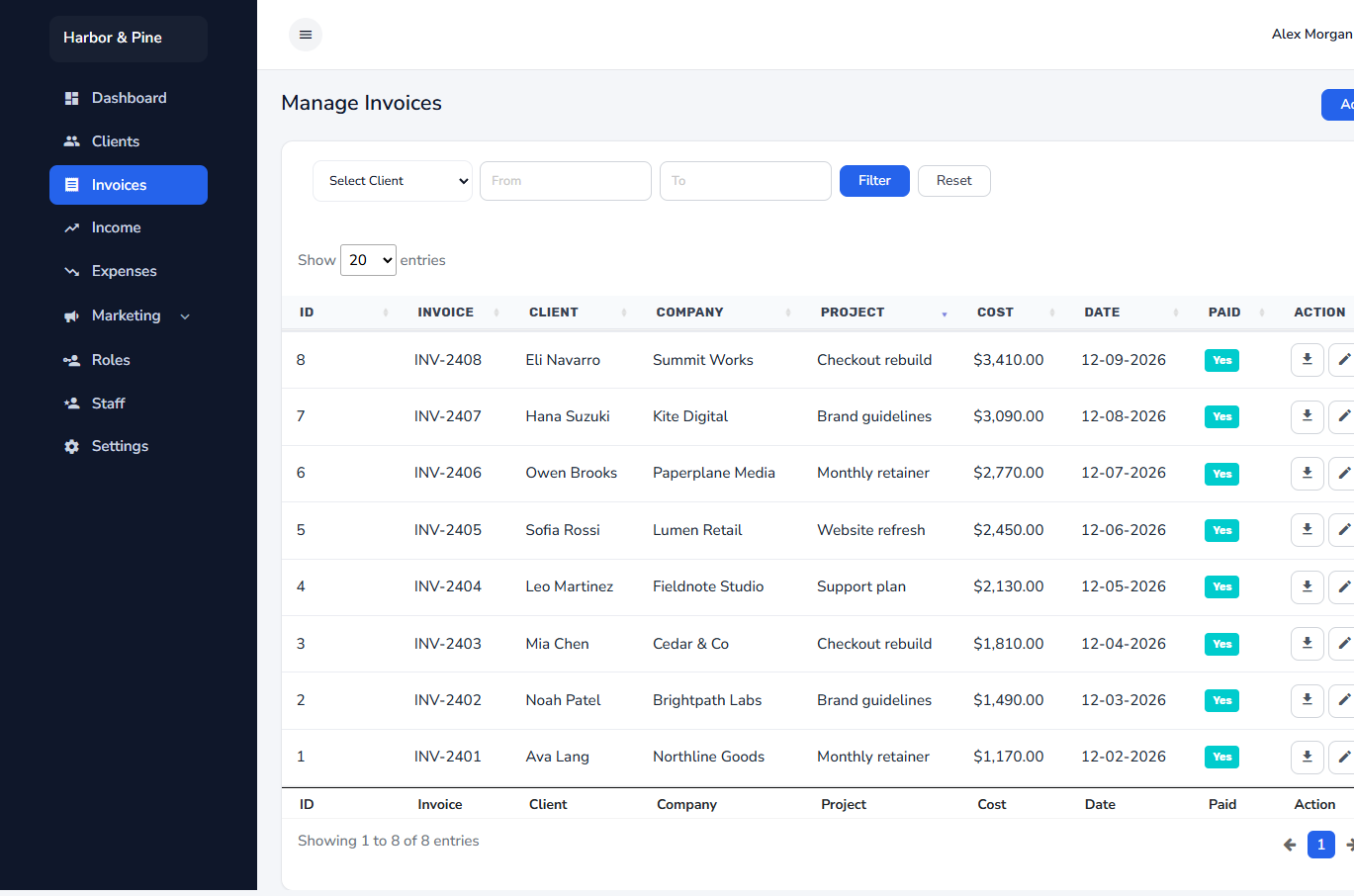
Send an invoice you can stand behind
Pick the client and the bank account, set the amounts and dates, and download the invoice. The account fills the from-address, GST, and bank details on the document.
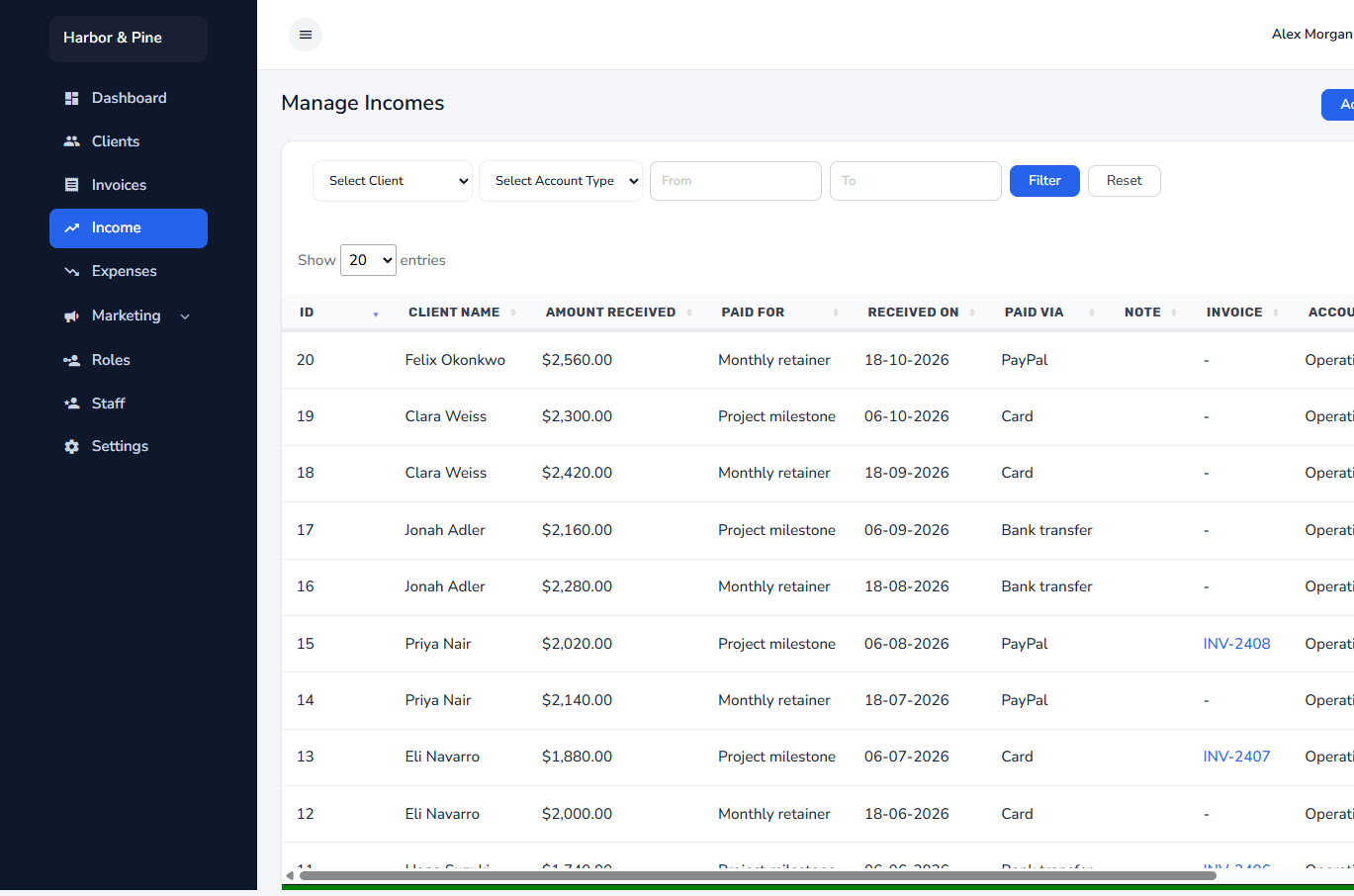
Record the money that came in
Log each payment against the right account. Those rows are what the yearly chart adds up, so the dashboard stays in step with what you actually received.
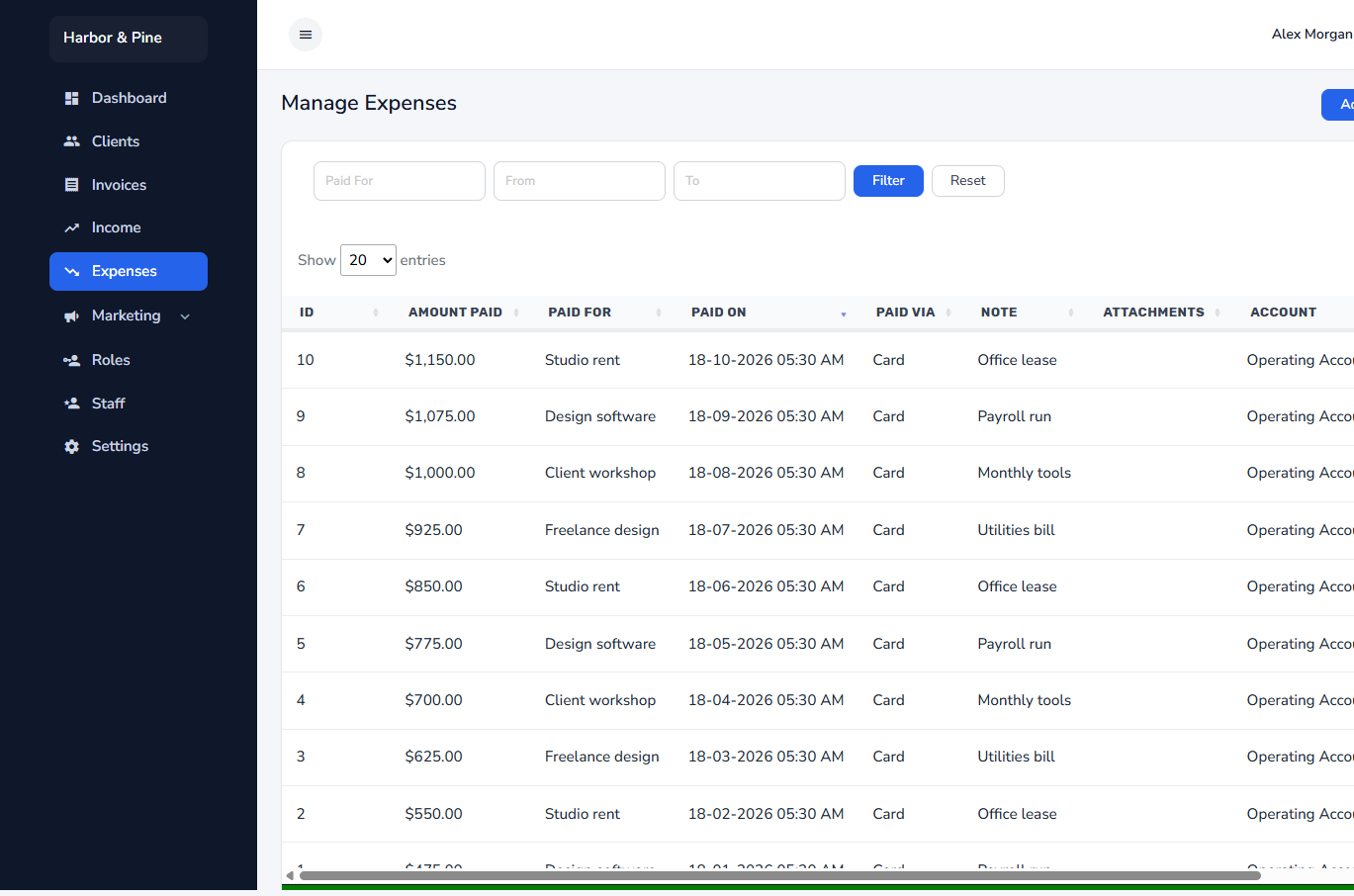
See what the year cost
Record outgoing costs by category. Spending sits next to income, so you can see the net, not only what you billed.
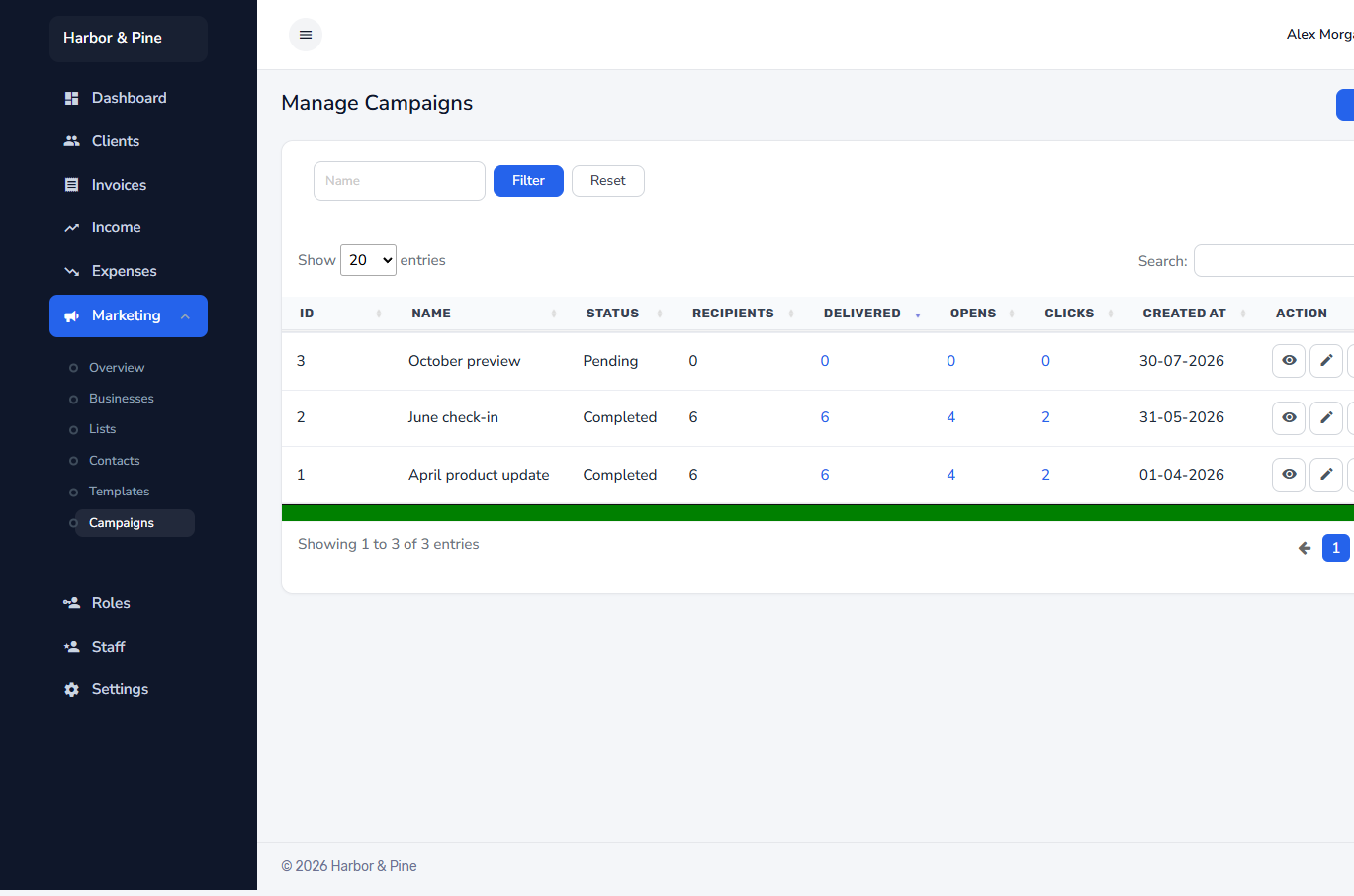
Email a list from your own server
Send a template to a list through the SMTP account you saved, then open the report for delivered, opened, and clicked. You keep the list and the sending account.
Each person sees only their part of the work
Roles tick the modules a person may open: dashboard, clients, invoices, income, expenses, marketing, and settings. Staff accounts use a role. The first account is Super Admin and keeps full access, so you cannot lock yourself out. Someone who only sends email can land on the marketing dashboard instead of the finance one.
Your name on the login screen and the invoice
Settings holds the company name, the currency sign, and an optional logo. The logo shows on the login screen and on invoices. If you do not upload a logo, the company name is used instead.
What you need to run it
A browser installer creates the database, the first admin account, and the configuration file. You do not build those by hand.
- PHP 8.2 or newer, with mysqli and openssl
- MySQL 5.7 or newer, or MariaDB
- Apache with mod_rewrite, or Nginx with PHP-FPM
- Composer, to install the PHP packages
How to get started
After the files are on the server, the installer does the setup. Then you put your own company on the paperwork.
- Upload the files to your server. Do not include a configuration file of your own.
- From the project folder, run
composer install --no-dev. - Open the site in a browser. If it is not installed yet, you are sent to
/install. - Confirm the server checks, enter the database, and create the first admin. Then sign in at
/admin. - Set the company name, currency, and logo. Add clients, then invoices or a campaign.
Buy NXS CRM
Enter the name and email where we should send the zip. You will go to PayPal to pay. After the payment arrives, we email the file to that address.
Want to see if it fits your business?
Tell us how you keep clients and invoices today. We will walk you through NXS CRM and whether it covers the work you are doing by hand.